HMP Agent: The AI Humanizer Agent That Removes AI From Your Paper for You
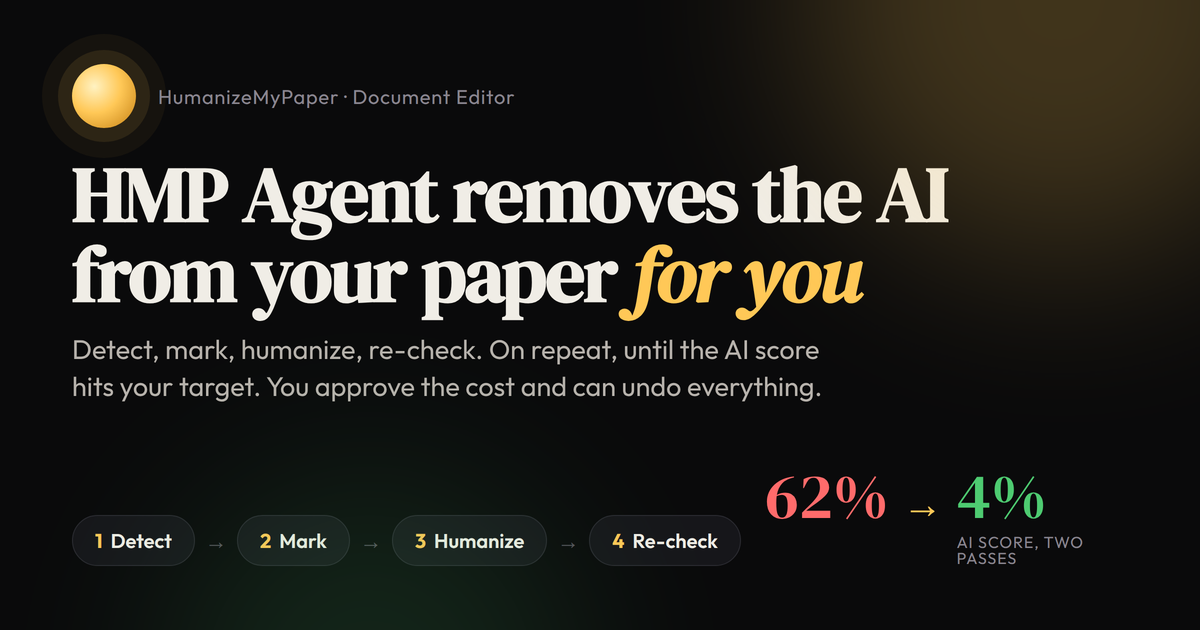
Every AI humanizer on the market asks you to run the same loop by hand. You check the AI score, find the flagged passages, paste them into the tool, paste the results back, and check again. For a long paper, that loop repeats three or four times and eats an evening. HMP Agent is the automatic AI humanizer inside the HumanizeMyPaper Document Editor, and it exists to run that loop for you. You assign a document, approve a cost ceiling, and the agent detects what reads as AI, humanizes only those passages, re-checks the score, and repeats until it reaches the target you set. This guide covers every feature of the HMP Agent, what it costs, where it stops, and how to get the most out of it, with screenshots from a real run.
What is HMP Agent?
HMP Agent is a hands-off mode of the Document Editor, the part of HumanizeMyPaper where you work on a full .docx rather than a text box. The editor already lets you run an AI check, mark the flagged sentences, and humanize them in one pass. The agent sequences those same tools on its own, on a background thread, and keeps going until one of its stop conditions is met.
The important design choice is what it does not do. It does not rewrite your whole document. It rewrites only the passages the AI detector highlighted, and on later passes only the ones still highlighted. That keeps your own writing, your quotations, and your reference list exactly as you wrote them, and it keeps the cost down, because there is no point paying to rewrite text nobody objected to.
How the HMP Agent loop works
Each pass has four phases. The agent logs every one of them so you can read back exactly what it did.
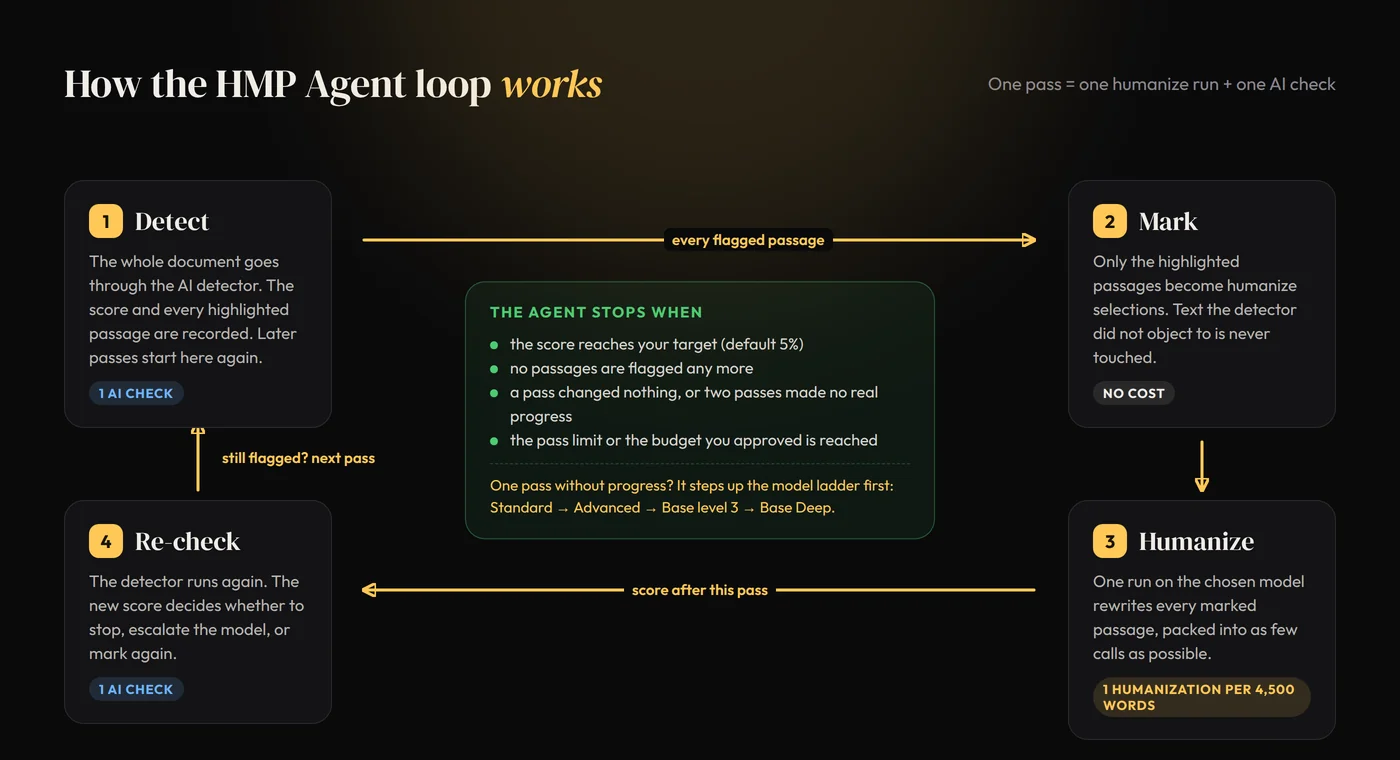
- Detect. The whole document goes through the AI detector. The agent records the score and the passages the detector highlighted. If the score is already at or below your target, it stops here and charges nothing more than that one check.
- Mark. Every highlighted passage is turned into a humanize selection, exactly as if you had clicked "Mark all AI parts" yourself. Nothing outside the highlights is marked.
- Humanize. One humanize run rewrites every marked passage on the model you chose, packed into as few calls as possible. This is the only phase that spends humanizations.
- Re-check. The detector runs again. The new score decides what happens next: stop, step up the model, or mark what is still flagged and go around again.
A pass is therefore one humanize run and one AI check. A three-pass run uses at most three humanize runs and four checks, and usually fewer, because the agent stops as soon as it can.
HMP Agent features, one by one
1. One-click assignment from the editor or the dashboard
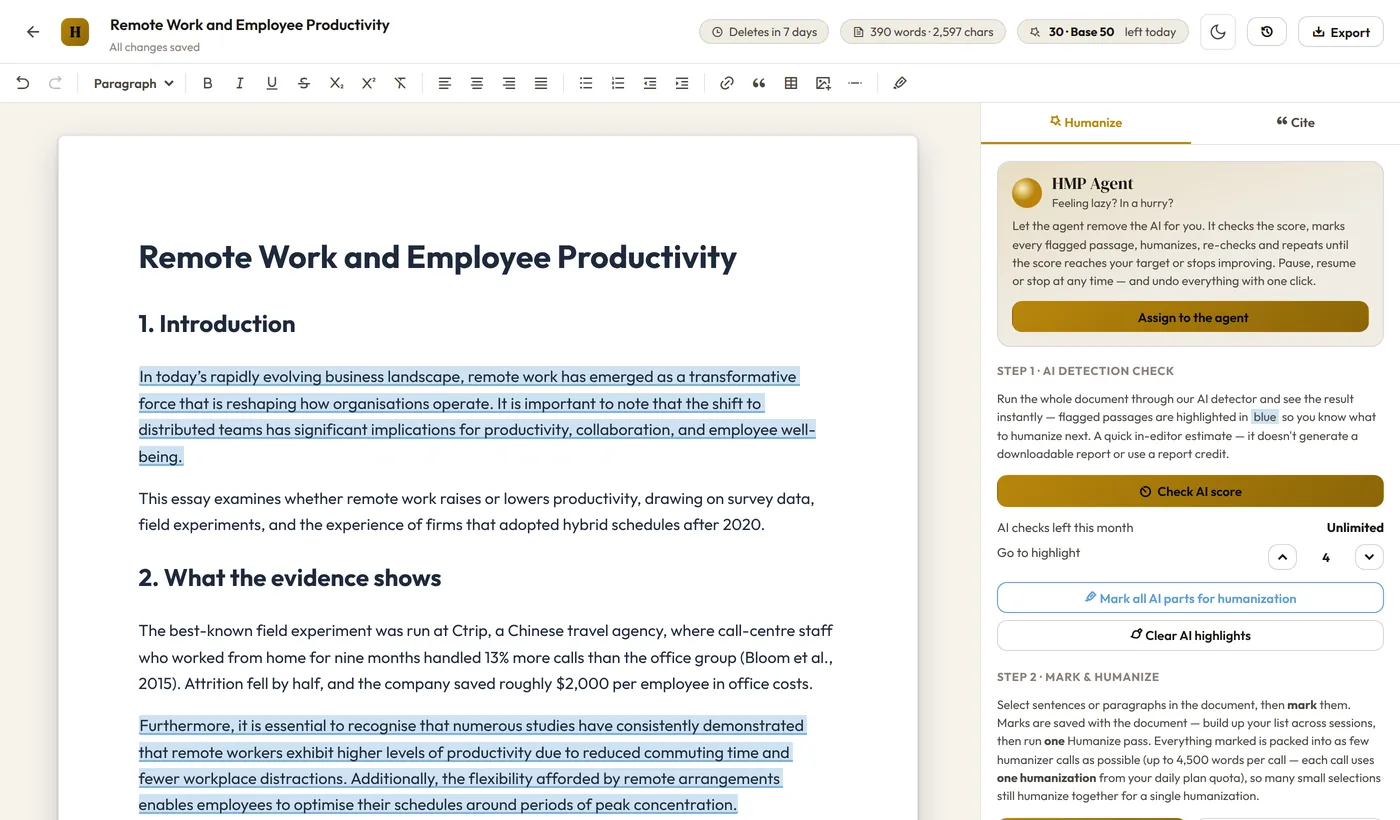
Open any document in the editor and the agent card sits at the top of the Humanize panel. Click "Assign to the agent" and you get the settings dialog. From the dashboard, every document card has its own "Assign to the agent" shortcut that opens the editor with the dialog already up, so a paper you just imported is one click from being handled.
2. A cost ceiling you approve before anything runs
The assign dialog shows the worst case before you start: the number of words in the document, the maximum humanizations the run could use, the maximum AI checks, and what you have left in your quota right now. The worst case assumes every pass rewrites the entire document. Real runs come in well under it, because later passes only touch what is still flagged, but the agent treats that worst case as a hard budget and stops before exceeding it.
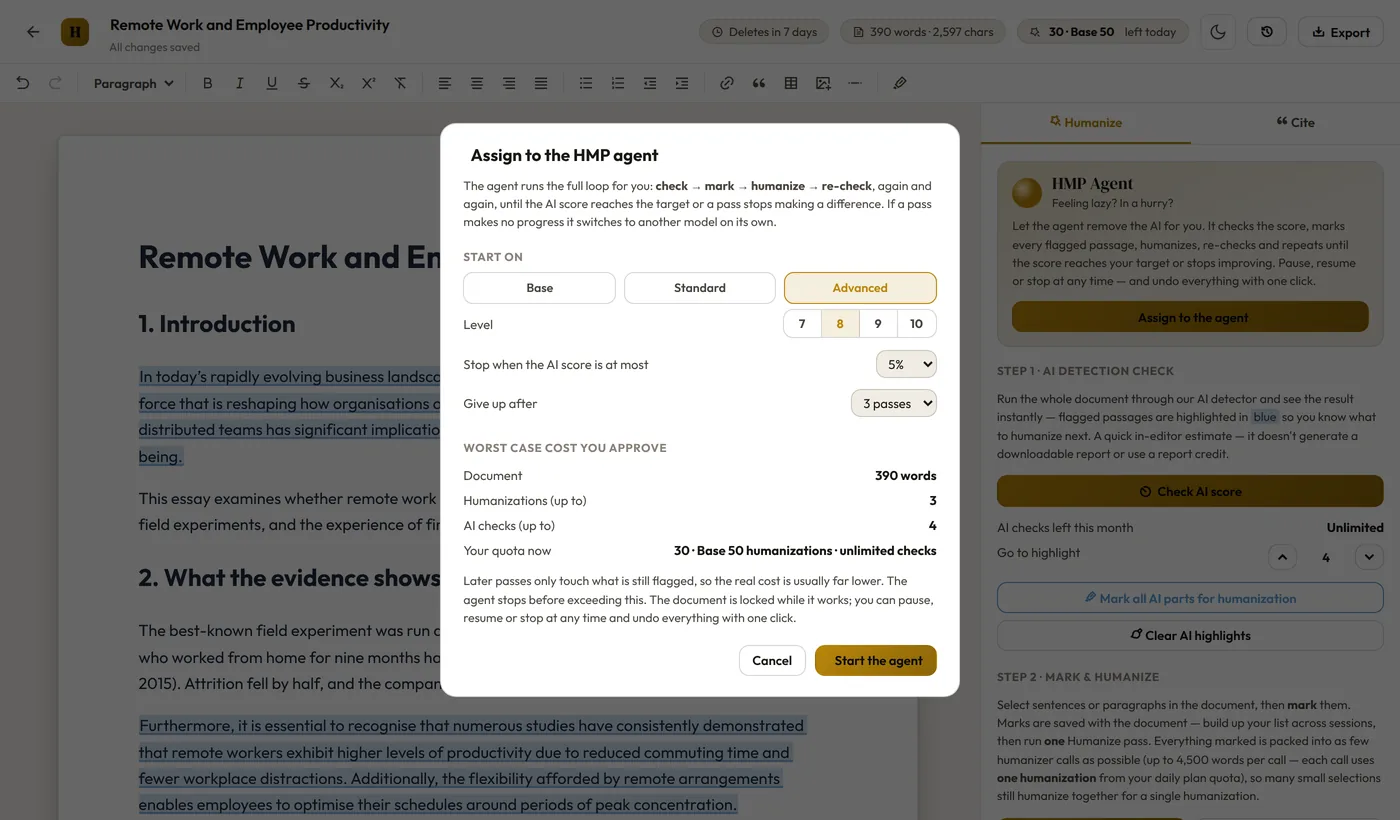
The four settings in the dialog:
- Start on. Base, Standard, or Advanced, the same models as the manual humanizer. Advanced is the default and the right choice for anything that will be checked by a detector. Standard and Advanced take a level from 7 to 10 (default 8); Base takes a level from 1 to 3 plus a writing style.
- Stop when the AI score is at most. 0%, 5%, 10%, or 20%. The default is 5%.
- Give up after. 1 to 4 passes. The default is 3.
- Worst case cost you approve. Computed from the settings above. This is the budget.
3. Rewrites only what the detector flags
This is the feature that separates the agent from "run the humanizer again" scripts. On every pass, the agent marks the detector's highlights and nothing else. If the detector highlights four paragraphs out of twelve, four paragraphs are rewritten. On the next pass, if two of those are still flagged, two are rewritten. Your methods section, your quotations, and your bibliography are never sent to the humanizer unless the detector highlighted them, and the humanizer is instructed to leave in-text citations and reference entries as they are in any case. The Cite tab's citation checker lets you confirm that afterwards.
The agent also refuses to churn. A passage that has been rewritten twice and is still flagged is frozen and left for you to handle by hand, and the run log tells you how many passages were frozen. If the detector's highlights cover only a small share of the text while the score stays high, the agent says so plainly in its final message: the detector is reacting to text it did not highlight, and a manual pass is the next step.
4. Live progress you can watch or walk away from
While the agent works, the panel shows the current AI score on a ring, a small bar chart of the score after each pass, which of the four phases is running, the last few lines of the run log, and how much of the budget has been spent. In the document itself, passages being humanized shimmer, freshly rewritten ones flash green, and a scan line moves down the page during a check. The document is locked while the agent owns it, so you cannot accidentally type into a paragraph it is about to replace.
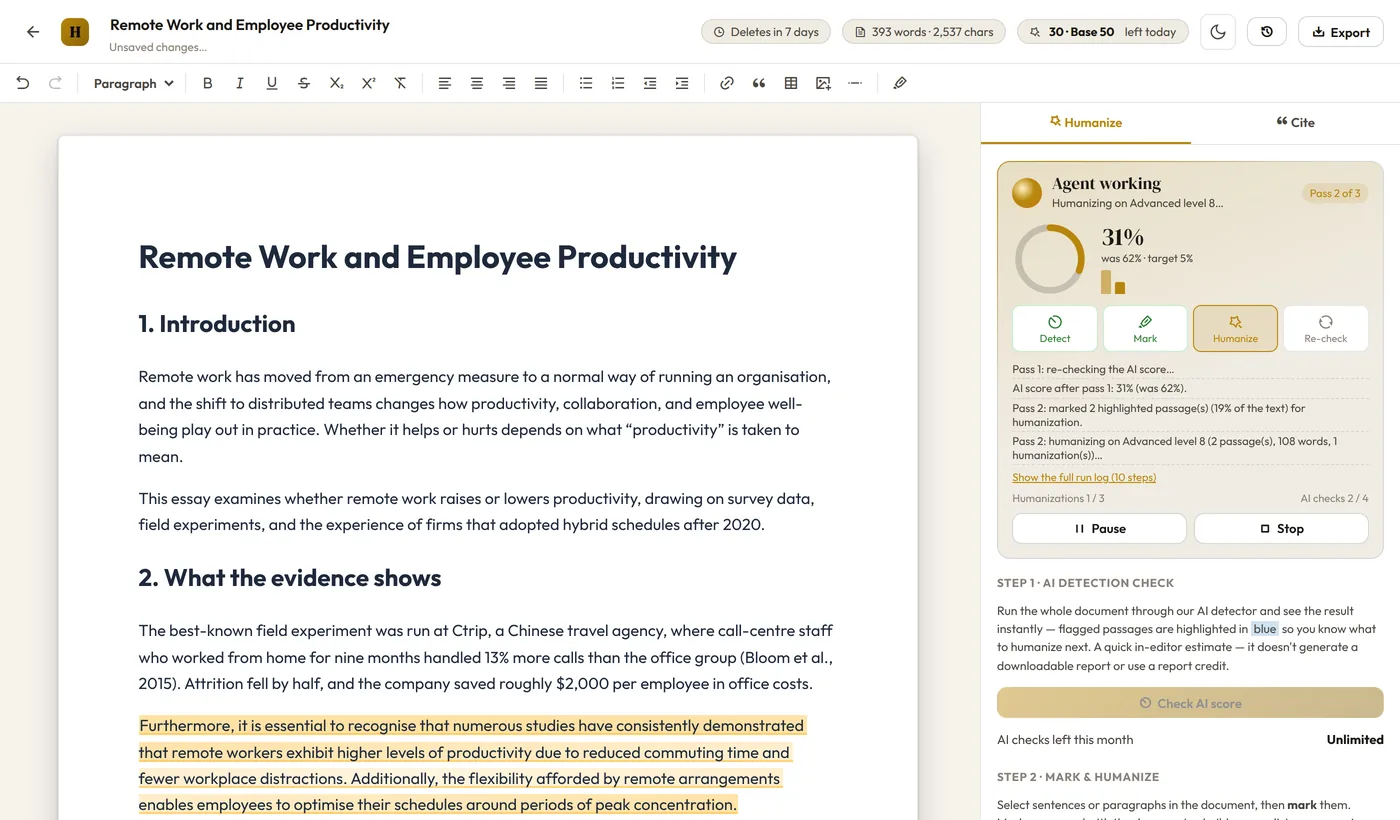
You do not have to watch. The loop runs on the server and saves its state after every step, so you can close the tab, open another document, or come back tomorrow. If the server restarts while the agent is mid-run, the run is paused at the next phase rather than lost, and a "Resume" button picks it up.
5. Pause, resume, and stop at any time
Three controls sit under the progress panel. Pause finishes the current step and then waits; Resume continues from the next phase; Stop ends the run after the current step and keeps everything done so far in the document. None of them waste a humanization, because the agent only ever stops between steps.
6. Automatic model escalation when a pass makes no progress
Detectors wobble by a few points on identical text, so the agent treats a drop smaller than 5 points as no progress. After one pass with no progress it steps up the model ladder on its own: Standard, then Advanced, then Base at level 3, then Base with Deep Humanize where your plan includes it. After two passes in a row with no progress it stops and tells you why, rather than spending your budget on a passage the current approach cannot move. The escalation is written into the run log, so you always know which model produced which pass.
Two smaller fallbacks work the same way. If the flagged text in a pass is below the 40-word floor of the Standard and Advanced models, the agent uses the Base model for that pass instead of failing. If the model pool is temporarily unavailable, it falls back to Base for that pass too, exactly as the manual humanizer does.
7. Clear stop reasons, never a silent end
The agent always finishes with a sentence explaining why. The full list:
| Stop reason | What it means |
|---|---|
| Target reached | The AI score is at or below the target you set. |
| No flags left | The detector found no passages to rewrite, even if the score is above the target. |
| Humanizer unchanged | The last pass came back with no changes, so another pass would not move the score. |
| No progress | Two passes in a row made no real difference to the score. |
| Pass limit | The number of passes you chose was reached. |
| Budget | The next pass would exceed the humanizations or checks you approved. |
| Quota | Your daily humanizations or monthly checks ran out. |
| Stopped by you | You clicked Stop. |
8. Undo everything with one click
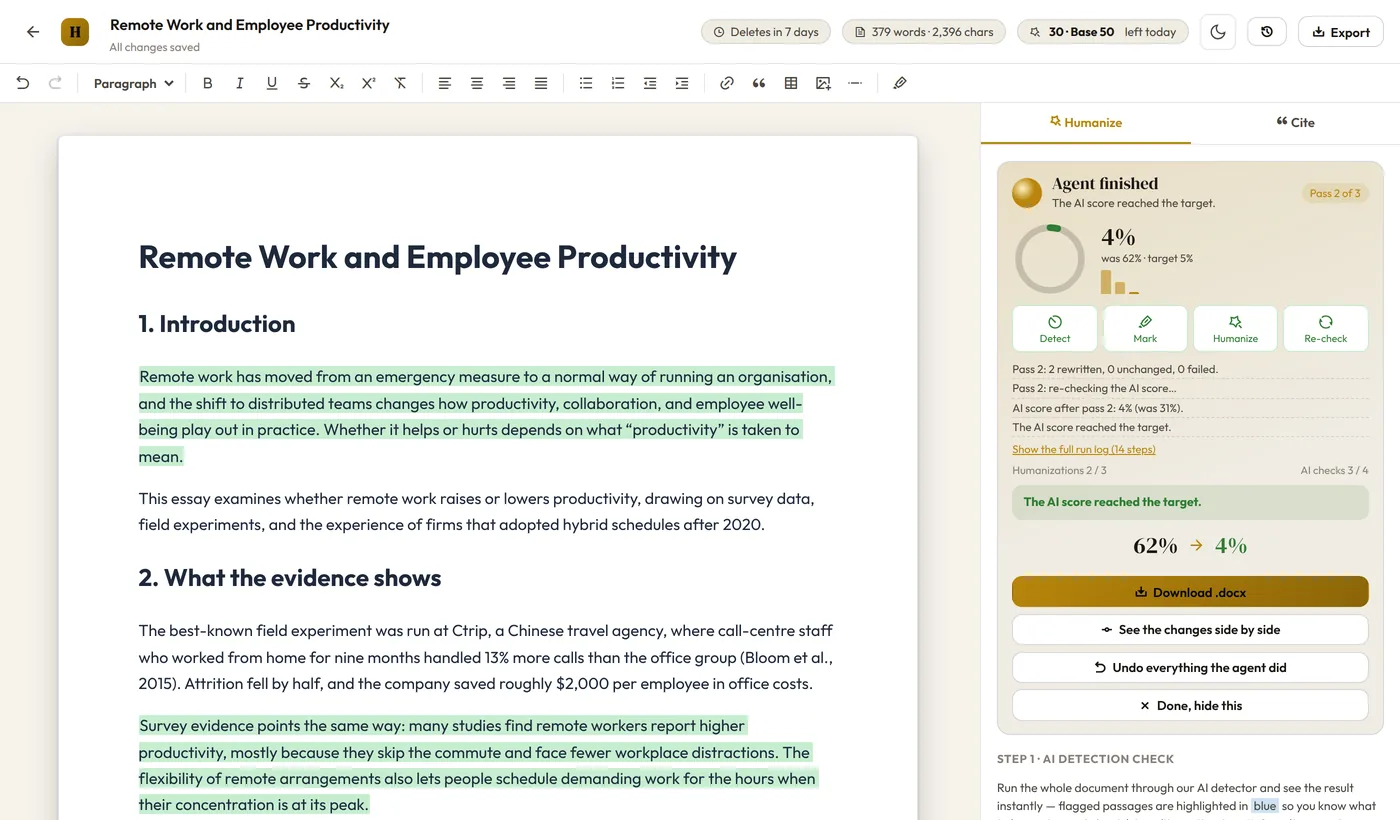
Before the first phase runs, the agent saves a snapshot of your document. When the run ends, the panel shows the before-and-after score, a "See the changes side by side" button, a "Download .docx" button, and "Undo everything the agent did". Undo restores the snapshot in one click, and the current state stays in the Document Timeline, so you can compare or go back the other way later.
9. Side-by-side review of every change
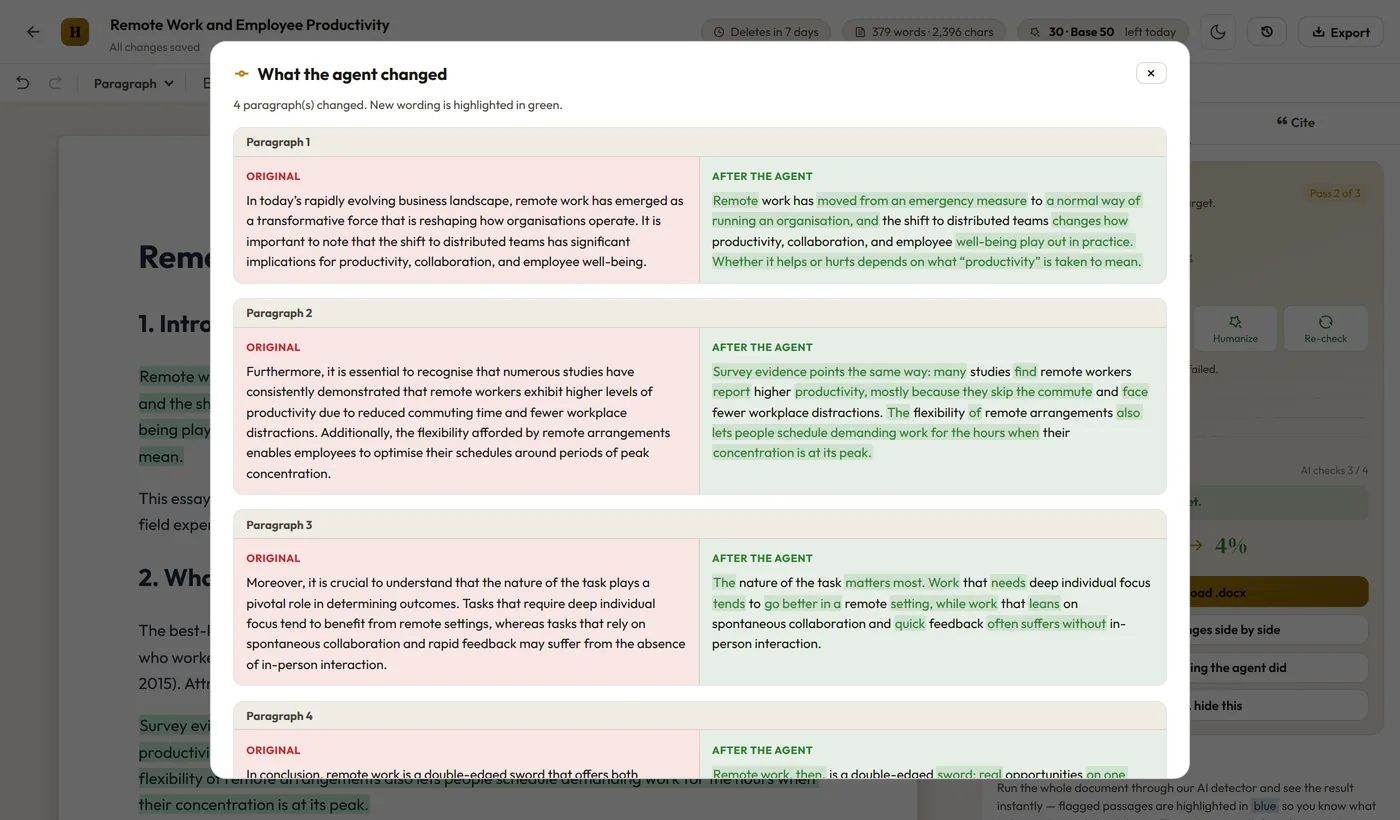
The comparison view lists each changed paragraph with the original on the left and the agent's version on the right, with new wording highlighted. This is where you read the result aloud and decide what to keep. The agent's job is to get the score down; making the text sound like you is still yours, and this view makes it a five-minute job rather than a re-read of the whole paper.
10. Ends with a .docx, not a text box
Because the agent works inside the Document Editor, the result is your original file with headings, lists, tables, and images intact. "Download .docx" exports it directly from the finished panel. If you want a submission-grade check on the exported file, run a Turnitin-style AI report from the dashboard, which we recommend in our guide to humanizing AI text for Turnitin.
Ready to humanize your writing?
Paste your draft and get clear, natural-sounding text in seconds — free to start, no credit card required.
Try the HumanizeMyPaper humanizer freeManual editor workflow vs HMP Agent
Both use the same detector, the same models, and the same pricing. The difference is who runs the loop.
| Step | Manual in the editor | HMP Agent |
|---|---|---|
| Run the AI check | You click it | Automatic, every pass |
| Mark flagged passages | You click "Mark all AI parts" or select by hand | Automatic, highlights only |
| Choose the model | You pick it each run | You pick the start; it escalates on no progress |
| Re-check and repeat | You decide when to stop | Stops on target, no flags, no progress, or budget |
| Cost | One humanization per 4,500 marked words per run | Same, capped by the budget you approve |
| Undo | Document Timeline | One-click restore of the pre-agent snapshot |
| Best for | Control over exactly which sentences change | Long papers, tight deadlines, several documents |
Use the manual workflow when you want to decide sentence by sentence, for example to leave a methods section alone. Use the agent when the detector's highlights are a fair picture of what needs work and you would rather review the result than drive the process.
What HMP Agent costs
There is no separate charge for the agent. It spends the same two allowances as the manual editor:
- Humanizations. One per humanize call, and a call covers up to 4,500 words of marked text. A 3,000-word essay with a third of it flagged fits in one call per pass. Runs that fail are refunded automatically.
- In-editor AI checks. One per detect or re-check phase. Basic includes 5 a month, Standard 20, and Premium unlimited. The agent needs at least 2 left to start.
For most papers the whole run costs two or three humanizations and three or four checks, which is less than the manual loop tends to use, because the agent never re-marks text the detector has stopped flagging. The pricing page lists the daily humanization allowance for each plan.
Requirements and limits
- An active paid plan. Importing, editing, and exporting work without one; humanizing does not.
- At least a few paragraphs of text. The detector needs enough to score.
- At least two in-editor AI checks left this month.
- Up to 4 passes per assignment. You can assign the document again afterwards.
- One agent per document at a time, and the document is locked to you while it runs. Other documents are unaffected.
- Documents in the editor are deleted seven days after upload, agent history included, so export when you are done.
Tips for the best results
- Start on Advanced at level 8 or higher for anything that faces a detector. Base is fine for a light polish but escalates slowly.
- Leave the target at 5%. Chasing 0% costs extra passes for a difference no reader will notice, and detectors are not precise enough at the low end to reward it. Our explainer on how AI detectors work covers why.
- Read the log when it stops early. "No progress" with low highlight coverage means the detector is reacting to text it did not mark. Rewrite a paragraph or two in your own voice and assign again.
- Use the side-by-side view, then edit. Add a concrete example, a number, or an opinion to the rewritten paragraphs. That step makes the text yours, and it is the one no detector can argue with.
- Run a report on the export. The in-editor check is a fast estimate for steering the loop. A Turnitin-style AI and plagiarism report from the dashboard is the number to trust before you submit.
A note on academic integrity
The agent changes how much clicking you do, not what your institution allows. If AI assistance must be disclosed, disclose it; if it is prohibited for drafting, do not draft with it. What the agent does well is the honest version of the task: it leaves your own writing alone, changes only what a detector would misread, keeps a timestamped history of every pass in the Document Timeline, and lets you restore the original at any time. Our safety and privacy guide goes into the integrity question in more depth.
Quick reference
- Where: Document Editor, Humanize panel, or the "Assign to the agent" shortcut on any dashboard document card.
- Loop: detect, mark, humanize, re-check; up to 4 passes; default 3.
- Target: 0%, 5%, 10%, or 20% AI; default 5%.
- Models: start on Base, Standard, or Advanced; escalates Standard, Advanced, Base level 3, Base Deep on no progress.
- Scope: only detector highlights; frozen after two rewrites of the same passage.
- Cost: one humanization per 4,500 marked words per pass, one AI check per detect or re-check, capped by the budget you approve.
- Controls: pause, resume, stop; survives a closed tab; pauses on a server restart.
- After: before-and-after score, side-by-side changes, one-click undo, .docx download.
If you have a paper open right now, import it into the editor, press "Assign to the agent", and read the result instead of running the loop yourself. Start from the HumanizeMyPaper AI humanizer or go straight to the editor from your dashboard.
Frequently asked questions
What is HMP Agent?
HMP Agent is the automatic mode of the HumanizeMyPaper Document Editor. You assign a document to it, approve a cost ceiling, and it runs the detect, mark, humanize, re-check loop on its own until the AI score reaches your target, nothing is flagged, or a pass stops making a difference. You can pause, resume, stop, and undo everything it did.
Does HMP Agent rewrite the whole document?
No. It only rewrites the passages the AI detector highlights. Text the detector did not object to is never sent to the humanizer, and later passes touch only what is still flagged. A passage that has been rewritten twice and is still flagged is left alone rather than churned.
How much does an HMP Agent run cost?
Each pass costs one humanize run plus one AI check. A humanize run charges one humanization per 4,500 words of marked text, the same as a manual run. Before it starts, the agent shows the worst case, which is every pass rewriting the whole document, and it never exceeds that budget. In practice later passes cover far less text, so a typical 3,000-word essay finishes in two or three humanizations.
Can I undo what the agent did?
Yes. The agent snapshots your document before it starts. When it finishes you can compare the before and after side by side and restore the original with one click. The snapshot also appears in the Document Timeline like any other version.
What happens if I close the tab while the agent is running?
Nothing is lost. The agent runs on the server and saves its state after every step, so you can close the tab and come back later. If the server restarts mid-run, the agent pauses at the next step and you resume it with one click.
Which plans include HMP Agent?
Every paid plan. The agent uses your normal daily humanizations and your monthly in-editor AI checks, so it needs at least two checks left for the month (one before, one after). Basic includes 5 checks a month, Standard 20, and Premium unlimited.