HumanizeMyPaper Document Editor: Humanize a .docx Step by Step
Most AI humanizers give you a text box. You paste a paragraph, copy the result, paste it back into Word, fix the formatting, and repeat for the next paragraph. For a 3,000-word paper with a dozen passages that need work, that is an hour of copy-and-paste and a dozen humanizations spent. The HumanizeMyPaper Document Editor was built to remove that loop. You upload the .docx, see which passages read as machine-written, mark only those, humanize them together in one pass, and export the finished file. This guide walks through the whole workflow and explains why it is both faster and better for academic integrity than rewriting everything.
What the Document Editor is
The editor lives in your dashboard alongside the standard AI humanizer. It is a full rich-text editor in the browser, the same kind you would find in a modern writing tool, with a handful of features aimed at one job: getting a long document to read naturally without touching the parts that are already yours.
- .docx import and export. Headings, lists, tables, and images come through on import, and the finished document exports back to .docx.
- In-editor AI check. One click scores the whole document and highlights the passages most likely to read as AI.
- Selective marking. You mark sentences or paragraphs for humanization. Nothing unmarked is changed.
- Batched humanize runs. Every marked selection is rewritten in one pass, packed into as few calls as possible.
- HMP Agent. A hands-off mode that runs the check, mark, humanize, re-check loop for you until the score reaches your target. See every HMP Agent feature explained.
- Citation tools. A scanner warns you about in-text citations before a run, and a CrossRef search inserts APA, MLA, or Harvard references in one click.
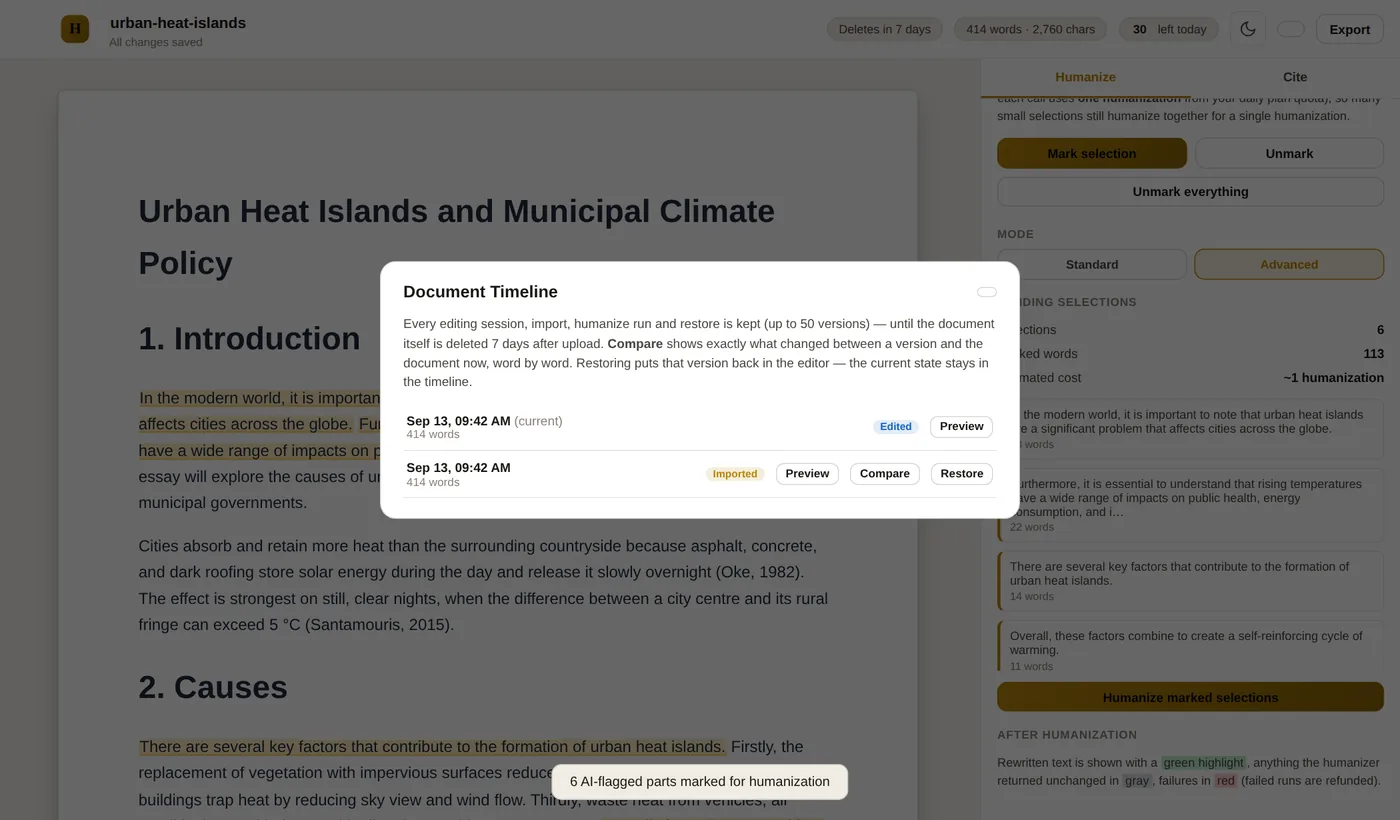
- Document Timeline. Every import, humanize run, and editing session is saved as a version you can preview and restore.
- Autosave and automatic deletion. Work is saved as you type, and every document is deleted seven days after upload.
Step 1: get your document in
Open the editor from your dashboard and either upload a .docx or start blank. Files up to 20 MB are accepted. If you already used the main humanizer, the "Edit in full editor" button under the output creates a new editor document seeded with the humanized text, so you can move from a quick rewrite into detailed editing without pasting anything.
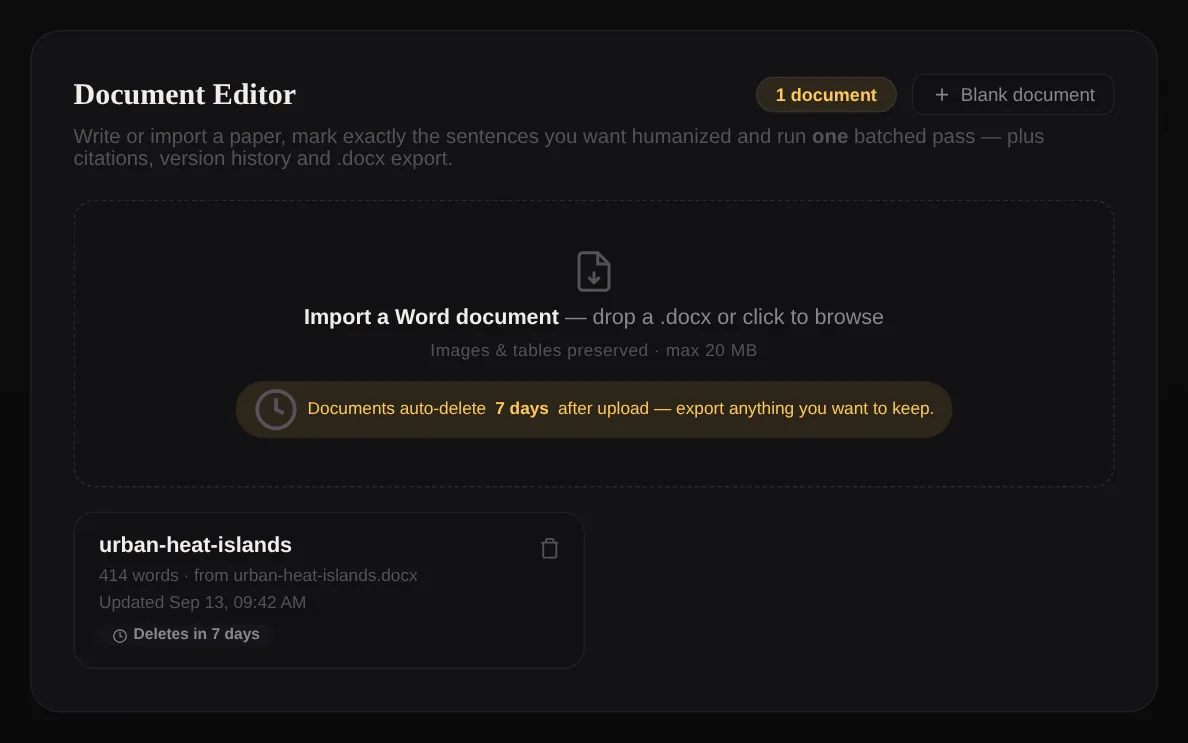
Once the document is open, the remaining storage time is shown at the top. Documents live for seven days from upload and are then deleted along with their version history, so plan to export before then.
Step 2: run the AI check and see what actually needs work
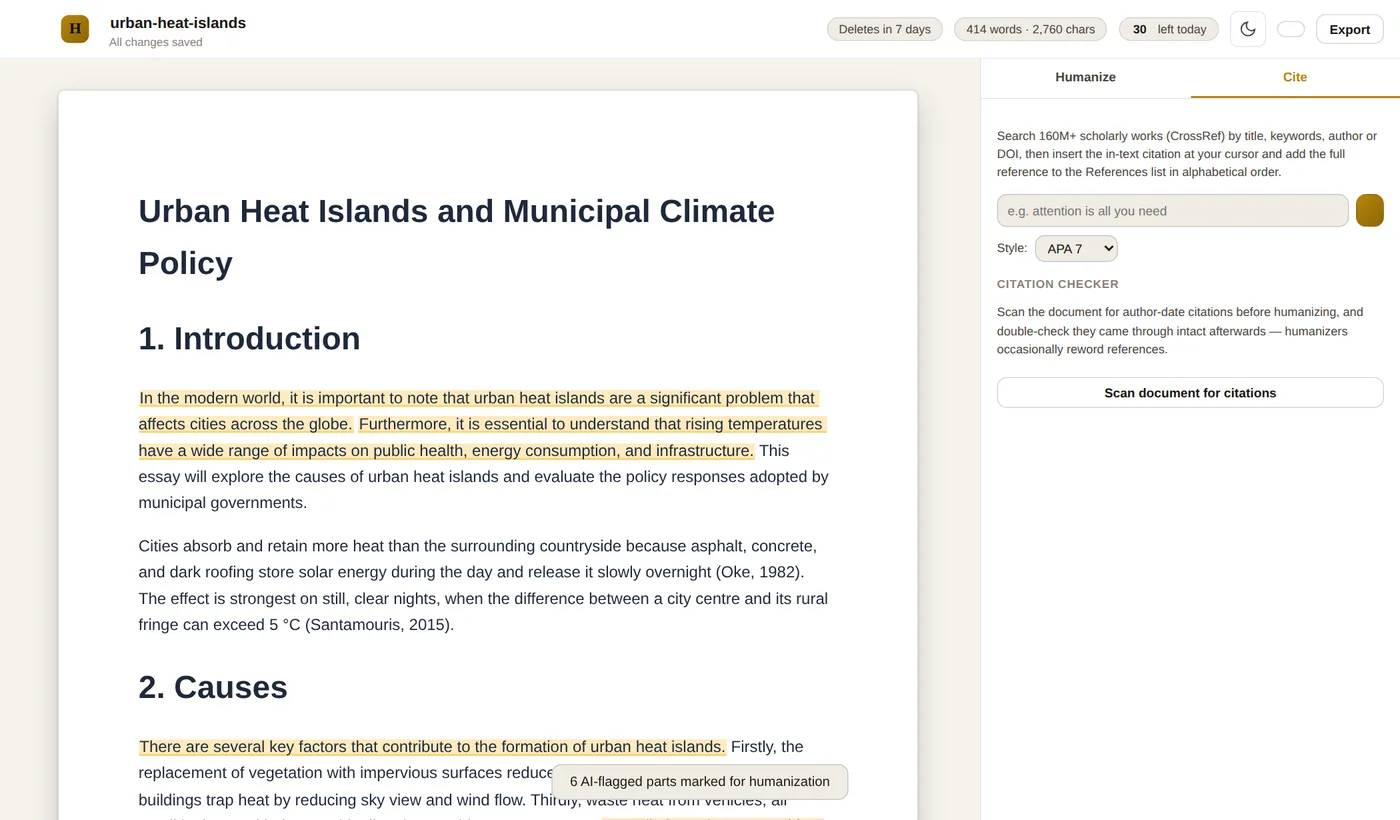
This is the step that changes how you use a humanizer. Click "AI check" and the editor sends the document text to the detector. The result comes back as a score plus blue highlights on the passages the detector considers most likely to be machine-written, expanded to full sentence boundaries so you can read each one in context. A previous/next stepper jumps between them.
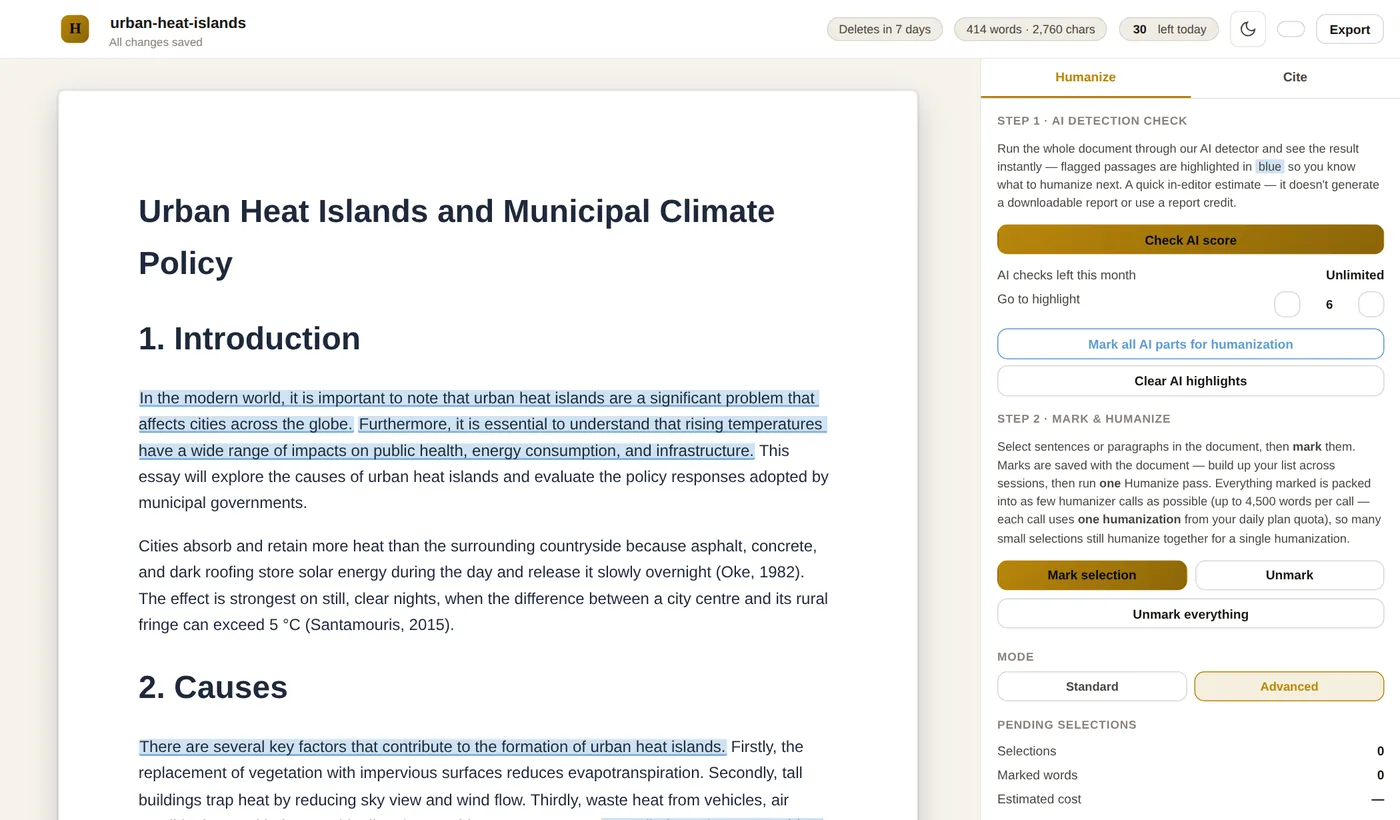
Two practical notes. The check needs at least a few paragraphs of text to run, and it is a quick in-editor estimate rather than a formal report. Its purpose is to tell you where to focus. For a submission-grade result, export the document and run a Turnitin-style AI and plagiarism report from the dashboard, which is what we recommend in our guide to humanizing for Turnitin in 2026.
In-editor checks are metered monthly and reset on the first: 5 on Basic, 20 on Standard, and unlimited on Premium. They are separate from both your daily humanizations and your report credits. See the pricing page for the full breakdown.
Step 3: mark only what you want rewritten
Now decide what to change. You have two options:
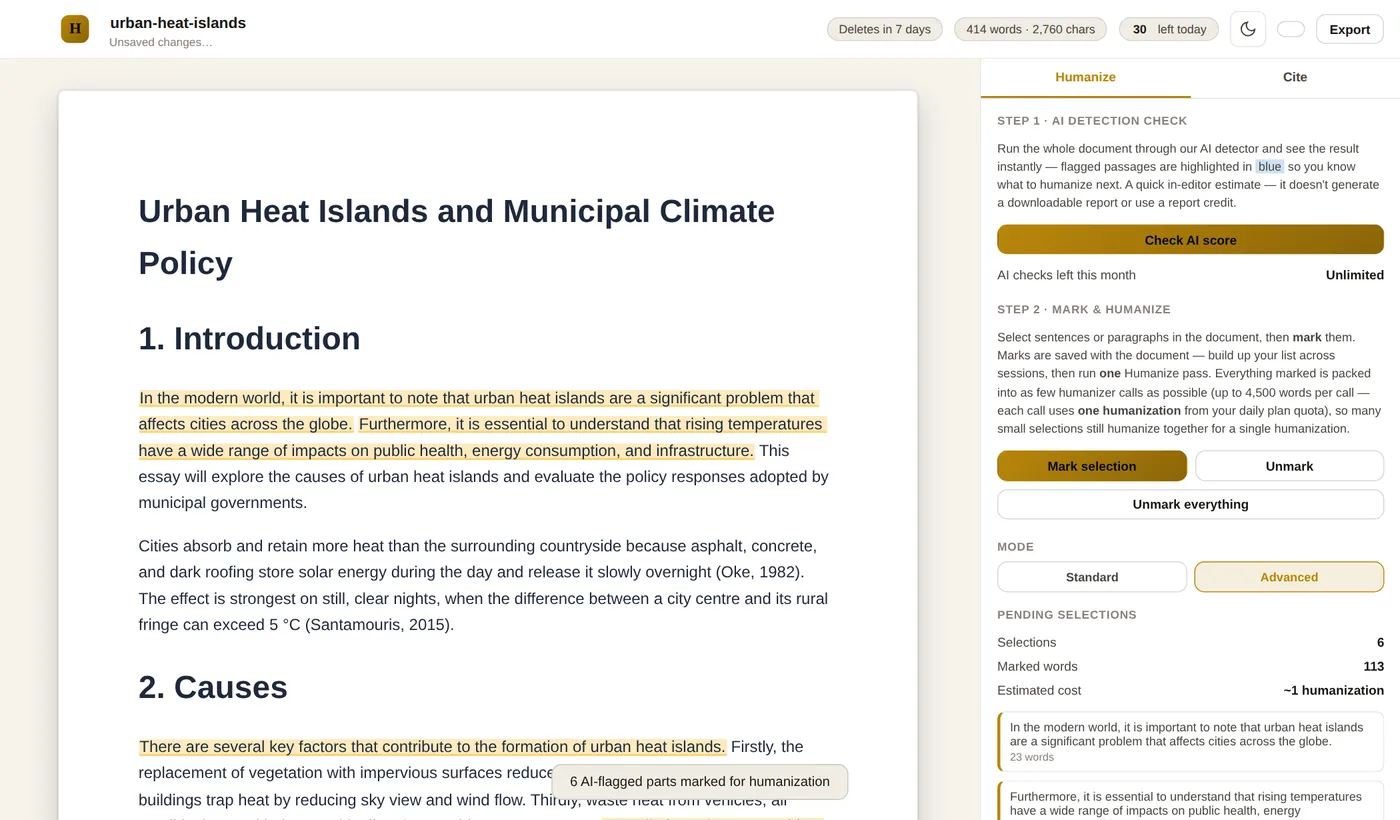
- Mark all AI parts. One button turns every blue highlight into a pending humanize mark. This is the fast path for a draft that was mostly AI-assisted.
- Mark by hand. Select any sentence or paragraph and click "Mark selection". Use this when you want control, for example to leave a methods section alone and rework only the discussion.
Marks are saved with the document. You can build up your list across several sessions, unmark anything you change your mind about, and only run the humanizer when the set is right. Quoted material, headings, tables, and your reference list stay untouched unless you deliberately mark them.
Ready to humanize your writing?
Paste your draft and get clear, natural-sounding text in seconds — free to start, no credit card required.
Try the HumanizeMyPaper humanizer freeStep 4: humanize everything in one pass
Click "Humanize" and a confirmation panel shows you exactly what will happen before anything runs: the number of marked words, the number of humanizer calls needed, the cost in humanizations, and how many you have left today. Choose the Standard or Advanced mode, then confirm.
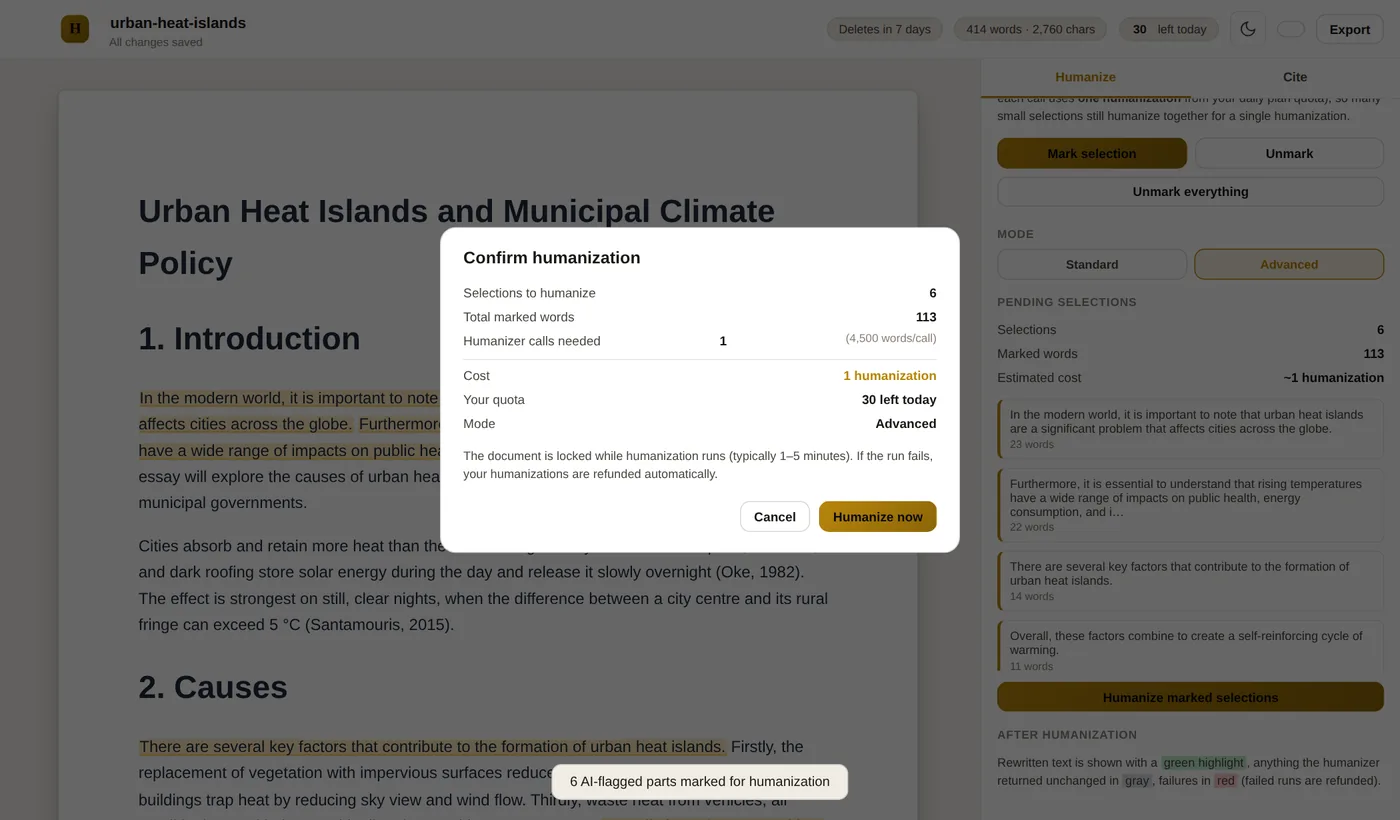
Here is why this is efficient. The editor packs every marked selection into as few calls as possible, up to about 4,500 words per call, and each call counts as one humanization against your daily allowance. Twelve scattered paragraphs totalling 3,000 words cost one humanization. Pasting those same twelve paragraphs into a text-box tool one at a time would cost twelve, plus the copy-and-paste time. A single run can cover up to five calls, or roughly 22,000 words of marked text, which is a full thesis chapter. If a run fails, the humanizations are refunded automatically.
The run happens in the background and the editor polls for the result. Short runs finish in well under a minute; a run that needs several calls can take a few minutes. When it completes, each rewritten passage is highlighted so you can read the before and after in place, and the run is saved as its own version in the timeline.
Step 5: protect your citations
Humanizers occasionally reword references, which is the last thing you want in academic work. The editor handles this in two ways. Before a run, the citation scanner checks the marked text for author-date citations and warns you if any are inside the selection, so you can unmark them. After a run, the same scanner in the Citation checker panel lets you confirm every citation came through intact.
If you need to add a reference, the Cite panel searches CrossRef by title, author, or keyword and inserts the in-text citation at your cursor plus the full entry in your References section, formatted in APA, MLA, or Harvard.
Step 6: review, restore if needed, and export
Read the rewritten passages aloud. Anything that does not sound like you, change by hand; the editor is a normal editor, so just type. If a run went further than you wanted, open the Document Timeline, preview the version from before the run, and restore it. Autosaves within the same editing session are coalesced into one entry, so the timeline reads as a history of your work rather than a list of keystrokes, and the last 50 versions are kept.
When you are happy, click Export to download the finished .docx. Formatting, tables, and images are written back into the file.
Why selective humanizing is better for academic integrity
The text-box workflow encourages a bad habit: rewrite everything and hope. The editor pushes you toward the opposite, and that matters more in 2026 than it did a year ago.
- Your own writing stays your own. The AI check shows you which passages read as machine-like. Often that is a paragraph you polished too hard with a grammar tool, or a formulaic introduction. You fix those and leave the rest.
- Quotations and references are never silently changed. Unmarked text is not sent to the humanizer at all, and the citation scanner catches the cases where you marked too much.
- You keep a record of how the document developed. The timeline shows imports, humanize runs, restores, and editing sessions with timestamps. If your use of AI assistance is ever questioned, a visible drafting history is far more persuasive than any detector score.
- Nothing is kept longer than a week. Documents and their versions are deleted seven days after upload. Your unpublished work does not sit on a server indefinitely.
None of this changes the rules at your institution. If AI assistance must be disclosed, disclose it; if it is prohibited for drafting, do not draft with it. What the editor changes is the default: it makes humanizing the parts that need it easier than humanizing everything, which is the honest way to use the tool. Our safety and privacy guide covers the integrity question in more depth.
Quick reference
- Import: .docx up to 20 MB, or start blank, or hand off from the main humanizer.
- AI check: whole-document estimate, blue highlights, 5 / 20 / unlimited per month by plan.
- Marking: any sentence or paragraph; marks saved with the document; minimum 40 marked words per run.
- Humanize run: about 4,500 words per call, up to 5 calls per run, one humanization per call, refunds on failure.
- Citations: pre-run warning, post-run check, CrossRef search with APA, MLA, and Harvard.
- History: last 50 versions, preview and restore.
- Export: .docx with formatting preserved.
- Retention: deleted 7 days after upload.
The editor is included with every plan. If you have a paper open right now, upload it, run the AI check, and see how little you actually need to change. Start from the HumanizeMyPaper AI humanizer or go straight to the editor from your dashboard.
Frequently asked questions
Can I humanize a Word document without losing formatting?
Yes. The Document Editor imports .docx files with headings, lists, tables, and images preserved, lets you humanize selected passages in place, and exports the result back to .docx.
Do I have to humanize the whole document?
No. You select sentences or paragraphs and mark them. Only marked text is rewritten; everything else, including quotations and references, stays exactly as you wrote it.
How many humanizations does an editor run cost?
One Humanize pass packs every marked selection into as few calls as possible, about 4,500 words per call, and each call counts as one humanization from your daily allowance. Twelve marked paragraphs totalling 3,000 words cost one humanization, not twelve.
How long are editor documents stored?
Seven days from upload. After that the document and its full version history are deleted automatically. The time remaining is shown on every document card and inside the editor, so export before it expires.
Is the in-editor AI check the same as a Turnitin-style report?
No. The in-editor check is a quick estimate that highlights the passages most likely to read as AI so you know what to work on. For a submission-grade result, run a Turnitin-style AI and plagiarism report from the dashboard on the exported file.